
Sometimes people know exactly what they want from a report and come with a list of questions for you to answer. More often than not, people don’t know what they want, and they don’t know what questions to ask in the first place.
If we don’t know who our users are, how they do their jobs, and how they would actually use our data, we can’t build them useful reports. Getting familiar with those people before we start gives us a better chance of building something they can use without having to remake it later.
In this guide, we’ll take a request like “show sales performance” and turn it into something you can build and check. You’ll have questions to ask, a filled example, and a checklist to help agree on what the report needs to do.
1. Separate the user, the approver, and the payer
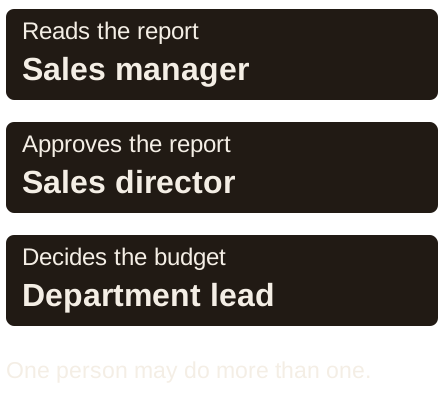
Think about your audience in three groups: who are you building the report for, who is approving it, and who is paying for it? Each may have different needs and priorities. Understanding that before you start helps you know whose questions the report needs to answer.
Write three names or job titles at the top of a blank page: user, approver, and payer. The user opens the report and does a task. The approver decides whether the report is acceptable. The payer controls the budget. In some projects, one person has all three jobs.
Ask the user: “What do you do with this report on Monday?” Ask the approver: “What must be true before you sign off?” Ask the payer: “What result would make this worth the time or money?” Write down the answers. If you are working with marketing data, talk to the marketers about the numbers they track, how they run campaigns, and what decisions they make.
Then ask whether the team already uses data for those decisions. If yes, ask which data and why. If no, ask what data would help. You do not need a fixed script. Get people talking and listen. A weekly report with repeated manual steps may be a useful first project if the new workbook makes those steps easier.
Illustrated example
Who needs to be involved?
2. Turn a vague topic into a question
The point of this conversation is to find out what someone needs to do with the report. A topic like “sales performance” becomes useful when you can turn it into a question they need answered.
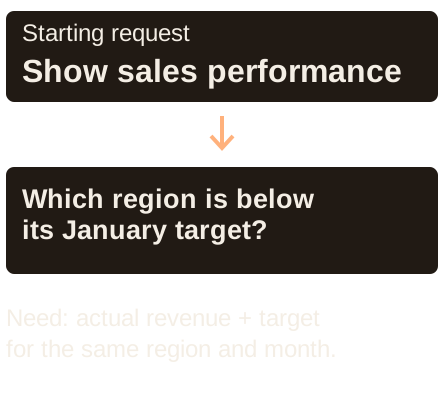
Write the request exactly as you heard it in the first column. Then ask what decision the person will make and write one question that can be checked with data.
| Starting request | More specific question | Data needed |
|---|---|---|
| Show sales performance | Which regions are below their monthly target? | Revenue and an agreed target by region and month |
| Show our campaigns | Which campaigns bring customers at the lowest cost? | Campaign name, campaign cost, and number of new customers |
| Show the backlog | Which unfinished tasks have been open for more than 14 days? | Date each task was created, whether it is finished, and today’s date |
“Sales” is a topic. “How are we doing?” is still too broad. Ask for the exact comparison. Put the most useful questions first, then cross out questions the available data cannot answer.
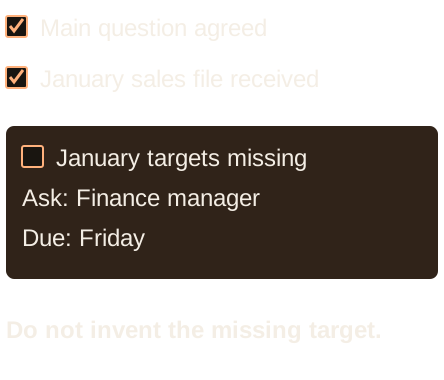
For example, a revenue table without targets cannot tell you which region is below target. A list of only today’s unfinished tasks cannot show how many tasks were unfinished last year. Keep the question, but write down the missing data and who could provide it.
Illustrated example
Turn a vague request into a test
3. Write down a requirement you can check
This is a fictional example for January 2026 only. It is a separate planning example, not the two-month sales table in the dashboard tutorial.
| Question | Our answer |
|---|---|
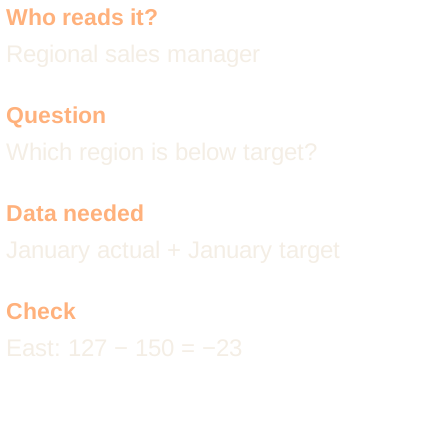
| Who will use it? | Regional sales manager |
| What will they do? | Choose which region to follow up with before the monthly meeting |
| What must it answer? | Which regions are below their January revenue target? |
| Which rows are included? | January sales only; no returns in this practice example |
| Which numbers are needed? | Actual revenue and target, in the same currency, for each region |
| Where do targets come from? | A table from Finance with one January target for each region: East 150 and West 110 |
| What must the filter change? | The region table, chart, and total revenue |
| How will it be used? | Windows desktop Excel, plus a fixed picture on a meeting slide |
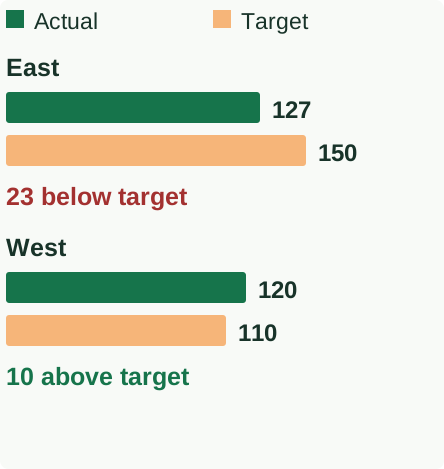
| What proves it works? | East shows 127 against a target of 150: 23 below target |
| Who checks the answer? | The sales manager compares the report with the supplied January figures |
For a real report, agree on the currency, date cutoff, refunds, and any excluded sales. If someone asks to “make it professional,” ask which answer should be easier to find.
Illustrated example
A filled project note
4. Make a small test report
A small test report lets people point to what is missing before you build the full workbook. For this January-only example, use these values:
| Region | Actual revenue | Target |
|---|---|---|
| East | 127 | 150 |
| West | 120 | 110 |
- Open a blank sheet. Type the three headers in A1:C1 and the two rows in A2:C3.
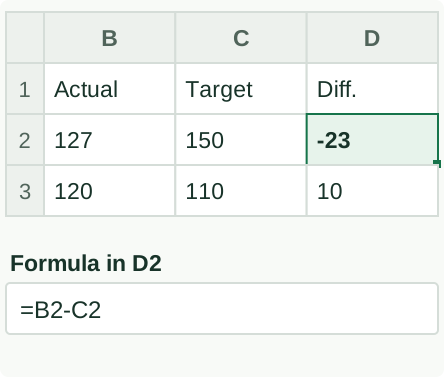
- In D1, type Difference. In D2, type
=B2-C2. Copy D2 to D3. - Check D2: it should show -23, meaning East is 23 below its target. D3 should show 10, meaning West is 10 above its target.
- Select A1:C3. Choose Insert → Column or Bar Chart → Clustered Column. Each region should have an Actual revenue column and a Target column.
- Above or beside the chart, write January: East is 23 below target.
- Show the test to the reader. Ask them to point to the region that needs follow-up and explain what they would do next.
If they ask “Does this include returns?”, add the answer to the project notes. It is normal for this first version to reveal a missing definition or column.
The layout guide helps you arrange the final page. The design principles help you make the main answer easy to see.
Illustrated example
Subtract target from actual
Illustrated example
January actual versus target
5. Bring this checklist to the project conversation
Copy this list into a shared document. Ask each question, type the answer beside it, and return to the document when someone asks for a new feature.
- Who uses the report, who approves it, and who owns the budget?
- What recurring decision or task should become easier?
- Which specific questions must the first version answer?
- What data is available today, and who provides it?
- What does one row represent?
- What does each number and date mean?
- What comparison, target, or time period gives the numbers meaning?
- For each filter, what should change? Example: the Region filter changes the region table, chart, and total revenue.
- Will people use desktop Excel, Excel for the web, a slide, or a PDF?
- Who updates the report and how often?
- Does this workbook use Data → Refresh All, PivotTable Analyze → Refresh, or another update step? Write the exact step here.
- What test row or month will prove the totals and filters work?
- What is outside the first version’s scope?
- Who reviews the test and approves the finished report?
For each answer, write a name and a date when someone else must provide it. If a question has no answer yet, write missing and the person who can supply it. If the output is a weekly presentation, plan the Excel-to-PowerPoint version before choosing the layout. If the first version is an interactive workbook, use one sheet for data, one for calculations, and one for the report.
Microsoft’s dashboard guide covers Excel features. It cannot choose the business questions for you; those come from understanding the work and the people.
Illustrated example
Write down what is missing
Turn the agreed questions into a layout
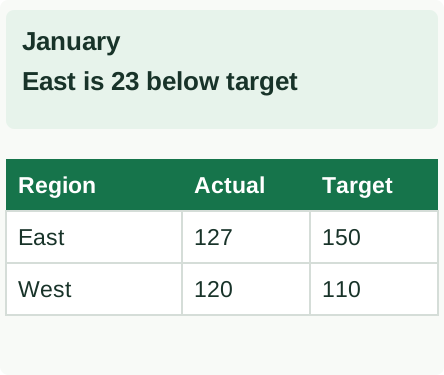
Draw the page around the agreed question. For the January example, put East is 23 below target at the top. Put the actual-versus-target chart below it. Label any filter and keep it near the numbers it changes.
Remove charts that do not help answer the agreed questions. A product chart is unnecessary in this first version if the only question is which region needs follow-up.
The Card Layout Guide gives you arrangements to start from. If you want help deciding what the report should show or building the workbook, work with me on the dashboard.
Illustrated example
Put the answer near the top
Microsoft documentation
The documentation below covers the Excel and PowerPoint features used in this guide. Choose the platform tab that matches your version.