Your context is part of the data.
Before you ask AI to find insights, tell it what the report is for.
“Analyze this spreadsheet” leaves a lot of room for it to invent priorities. A regional manager deciding where to spend next month’s budget needs something different from the person fixing this week’s exceptions. Same data. Different report.
Start with needs, then questions, then topics. Who will use this? Who approves it? What decision are they trying to make? What would they ask the moment you put the report in front of them?
This is where your domain knowledge matters. You know that a category changed names, a target was revised, or a spike happened during a system migration. An LLM cannot recover missing organizational context by sounding more confident.
Give it a small, useful project brief.
Tell it who is reading, what they need to understand, and what they can actually do about it. Then explain the data: what one row represents, which dates matter, the units and exclusions, and how the important metrics are calculated.
Add the real-world context that could change the interpretation. Has anything changed in operations, reporting rules, targets, or data collection? Separate what you know from what you suspect.
Finally, describe what you need to hand over. An editable Excel workbook, a printed report, a slide, and an interactive dashboard are different jobs. Say where and at what size people will use it, what needs to refresh, and which tools, privacy constraints, and brand standards the work must respect. For a worked example, use my Excel dashboard requirements checklist to turn those questions into a brief you can check.
Only share data you are authorized to put into that tool. Work on a copy, remove unnecessary sensitive fields, and don’t enable macros, install packages, or run unfamiliar code just because the model asks. This workflow does not require that.
Help me create a report for [audience] so they can [decision or task].

I have provided [files/tables]. One row represents [unit]. The reporting period is [period]. These definitions and exclusions matter: [details]. This is the business context: [confirmed facts and separate assumptions].

The final output must be [format, viewing size, editable/refreshable requirements]. Before analyzing, list the files, sheets, fields and amount of data you can actually access. Identify missing information or ambiguous definitions that could change the answer. Do not guess them. Ask the most important questions first.
Look around before you pick a story.
The first thing AI finds is a candidate insight. It hasn’t earned the headline yet.
Start with orientation: row counts, date coverage, missing values, duplicates, category names, unusual values, and totals you already know. Ask it to describe the data quality before describing your business. A duplicated import can look like extraordinary growth.
Then explore the question from a few angles: overall change, change within important groups, the size of those groups, and the distribution behind the average. Look for comparisons that make the result interpretable: previous period, target, equivalent group, or a meaningful baseline. Don’t ask for twenty “actionable insights” and reward it for filling the list.
If the tool can calculate over the actual file, ask it to produce inspectable summary tables. If it only sees a preview or cannot run calculations, stop treating its numbers as analysis. Have it suggest PivotTable steps or formulas, run them in your approved environment, and bring the results back.
Explore this data against the question in our brief. First report coverage, missing values, duplicates, unusual values, and totals I can reconcile.

Then propose up to five potentially useful findings. For each, show the supporting summary table, metric definition, comparison, group sizes, and an alternative explanation to check. Distinguish observed patterns from hypotheses. Include contradictory results and tell me what the available data cannot establish. Do not invent causes or recommendations to fill the list.
A small example: a true number, a misleading story.
We’ll use this invented support-report example throughout the guide. These are summaries of tickets closed in two equal-length reporting periods. “Days” means mean calendar days from opening to resolution; the two categories are mutually exclusive, cover all closed tickets, and use the same definitions in both periods. All figures are illustrative, not client data or measured AI results.
| Category | Period A tickets | A mean days | Period B tickets | B mean days |
|---|---|---|---|---|
| Routine | 80 | 2.0 | 50 | 1.8 |
| Complex | 20 | 8.0 | 50 | 7.0 |
| All closed tickets | 100 | 3.2 | 100 | 4.4 |
The overall average went from 3.2 to 4.4 days. That’s a 37.5% increase. “The support team is getting slower” sounds like an obvious headline. But average resolution time fell within both categories. The mix of closed tickets changed: complex work went from 20% to 50%.
That follow-up is where the value is. The right report makes the important qualification visible instead of leaving the audience to discover it after they’ve already accepted the headline.
Ask for receipts, not reassurance.
A citation is a place to start checking. It is not the check.
For a statement drawn from a document, ask for the exact source and passage. For a spreadsheet claim, ask for the file, sheet or table, relevant rows or record IDs, filters, formula, numerator, denominator, and time period. A link to the workbook does not prove that the calculation inside the answer is correct.
Keep a small evidence table. Give each finding an ID so you can carry it into the written narrative and then into a chart without quietly changing its meaning.
| Claim | Mean resolution time for closed tickets rose from 3.2 to 4.4 days. |
|---|---|
| Source | The illustrative table above; both categories, both periods. In a real project: exact source version, table and row references. |
| Calculation | A: (80 × 2 + 20 × 8) ÷ 100 = 3.2. B: (50 × 1.8 + 50 × 7) ÷ 100 = 4.4. Relative change: (4.4 − 3.2) ÷ 3.2 = 37.5%. |
| Checks | Both counts total 100. Category means are weighted by ticket count—not averaged equally. A direct check should reproduce the result from ticket-level data when available. |
| Boundary | Describes closed tickets. Does not establish incoming demand, open backlog, staff productivity, or why the mix changed. |
| Status | Arithmetic checked for this invented example. Business interpretation remains bounded by the stated assumptions. |
For a real report, independently reproduce the important numbers in Excel, a trusted query, or another calculation path. Check at least one ordinary case and one exception. Re-running the same wrong formula is not independent validation. Neither is asking a second model to agree with the first.
Push back with a specific question.
“Are you sure?” often produces a more confident explanation. Try: “What is the denominator?”, “Does this comparison hold within each group?”, “Are these completed actions or planned actions?”, “What evidence would contradict this?” or “Which part of that statement is not in the data?”
You can ask for an explanation of the method and assumptions. That’s different from asking for a model’s private chain of thought. OpenAI’s reasoning guidance specifically says chain-of-thought prompts are unnecessary for its reasoning models. What you need here is an auditable calculation and a concise justification—not a transcript of supposed internal thinking. OpenAI’s prompting guidance.
Audit finding [ID] against the original source, not just your earlier answer.

Show the source location, included and excluded records, metric definition, calculation and supporting values. Explain the method briefly. Separate the numeric observation, possible interpretation, and proposed action.

Test the strongest alternative explanation. Tell me what would change or falsify the conclusion, and give me a simple independent check I can perform. If evidence is missing, label the claim unverified; do not create a citation, value, or causal explanation.
For outside research, open the original sources and check that the cited passage supports the particular claim—not merely the general topic. Anthropic recommends grounding claims in source passages while warning that this doesn’t eliminate errors. Google likewise warns that Gemini can misattribute or invent sources, and may use only part of an oversized source set. Anthropic’s grounding guidance; Google’s source limitations.
Now, write it all down.
Before you make the charts, explain the report in plain language.
What’s the topic sentence? What are the supporting paragraphs? Does it answer the obvious questions? Is it too technical for the audience, or not technical enough? If there are holes in the verbal argument, those same holes will show up when you turn it into a dashboard.
In my reporting process, I call the next step a narrative pyramid. Start by describing the topic in a word or short phrase. Then a sentence. Then the supporting explanation. The point isn’t to spend an hour inventing a clever framework. It’s to work out what deserves the most space and what needs to sit beside it.
For our example, the topic is resolution time. The takeaway is that the overall average rose even though each category’s average fell. The supporting explanation is the shift toward complex closed tickets. The unresolved question is what happened to incoming work and the backlog.
Notice what we haven’t written: “Hire more people.” The available data doesn’t establish that action. A sensible next step is to inspect arrival volumes, backlog age, and category definitions before making a staffing recommendation.
Too much story, not enough evidence
“Service is deteriorating. We need to urgently improve team efficiency.”
A claim the evidence can carry
“The closed-ticket average rose while both categories got faster. Check the changing work mix and backlog before diagnosing performance.”
Use only our checked findings and explicitly labeled context. Write the report as:
1. A topic in a few words.
2. One plain-language takeaway for [audience].
3. Two or three supporting points, each linked to a finding ID.
4. Important limitations and unanswered questions.
5. A justified action, or the next investigation if no action is supported.

Then critique the argument. Where does it jump from observation to cause? What would this audience ask next? Do not smooth over contradictory evidence. No chart or layout design yet.
Read the result aloud. If it sounds like generic business commentary—“leverage insights to optimize performance”—keep going. You should be able to point to the specific thing that changed and explain why the reader should care.
Give every chart a sentence to answer.
For each part of your argument, choose the simplest visualization or metric that addresses it.
Sometimes that is a line chart. Sometimes it’s two bars. Sometimes it’s a single number with a meaningful comparison. Not every sentence needs a chart, and not every chart needs to be impressive.
Write a short chart brief before asking AI to build anything: the finding ID, the question, the metric, comparison, scope, intended takeaway, and the caveat that must stay visible. Ask for a simple option first, plus an alternative if there’s a real tradeoff.
| Reader’s next question | What earns space | What to avoid |
|---|---|---|
| What happened overall? | 3.2 → 4.4 days, with “closed tickets” and the two periods clearly labeled. | A red alarm that already assumes the team performed worse. |
| Did both categories slow down? | Paired bars on one shared days scale: routine 2.0 → 1.8; complex 8.0 → 7.0. | Separate axes that make different changes look equal. |
| Then why did the overall average rise? | Two 100% stacked bars showing the shift in closed-ticket mix. | A causal explanation for the mix change that isn’t in the data. |
| What should I do next? | A short, bounded next-step note and access to the calculations. | Another decorative KPI to fill the remaining space. |
Check the actual marks, not just the labels. Do the bars start from an appropriate baseline? Are dates chronological? Are categories missing? Does the unit match the title? Is a percentage change being confused with percentage points? In our example, complex share rose 30 percentage points, from 20% to 50%.
Consistency matters across charts as well as within them: the same category should keep its color, comparable charts should use comparable scales, and a period filter shouldn’t silently apply to only one panel. Microsoft’s dashboard guidance emphasizes audience, meaningful context, and consistent scales and periods. Those principles transfer beyond Power BI. Microsoft’s dashboard design guidance.
For checked finding [ID], the reader needs to understand [specific point]. Suggest the simplest visual or direct-number treatment that makes this clear.

Specify the metric, units, groups, periods, comparison, axis or baseline, direct labels, title, and visible caveat. Explain briefly why this is easier to interpret than a table or a different chart. Use only the approved values; don't generate the finished report yet.
For more on choosing the visual itself, start with my Excel chart types guide.
A report is not a bucket of charts.
The reader should feel the order of the argument without having to hunt for it.
Start with the canvas. Is this going into a slide, a printed page, or an Excel window? Decide the working size before you polish the charts. A design that works on a large monitor may be unreadable when pasted into a slide.
Block out the page with simple rectangles. Put the main point and necessary context first. Place the comparison that helps people interpret it nearby. Then add the supporting evidence and the detail people will want to inspect. You can remove the rectangles later; right now they help you budget attention and space.
Think about density twice: across the whole page and inside each panel. Does every card have four competing focal points? Is the chart squeezed because the title became a paragraph? Move detail down a level before shrinking everything.
For a multi-page report, give each page a job. An opening page might answer “What changed and what matters?” A second might explain the main drivers. An appendix can carry definitions and detailed tables. Read only the page titles in order: do they form a coherent account, or a list of departments?
My split-page approach uses a similar separation inside Excel: key insights at the top, the underlying data below. People get the point quickly, and when they ask “Can I see the actual data?”, there’s somewhere useful to go.
Use our approved narrative and chart briefs to propose a wireframe for [format and size]. For each section, state the audience question, finding IDs, content, relative prominence, and what belongs in supporting detail.

Show the reading order. Keep the central qualification beside the main takeaway. Identify redundant panels and anything that needs more room. If this is multi-page, give each page one job and show how its title leads to the next. Do not invent extra metrics to fill space.
See my guides to Excel dashboard layout and report design for more of the underlying design process.
You don’t need to invent a style.
Start with a reference you like. Then be specific about what you like about it.
Check your organization’s brand guide first. Then look at its website or a well-designed presentation. If you have more freedom, look beyond dashboards: an editorial layout, a magazine, a book cover, a piece of information design. You don’t need to be a designer to notice that something is readable, well-organized, and appropriate for your audience.
A useful reference gives AI concrete decisions to work with: restrained colors, strong headings, generous margins, a particular chart treatment. “Make it modern and professional” leaves those decisions almost entirely unspecified.
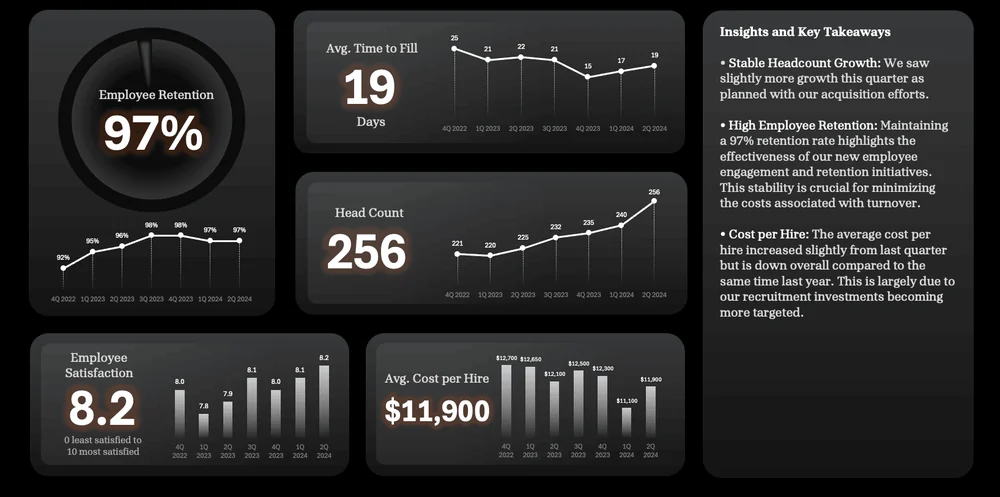
Think of the reference as a seed for the creative work, not a literal dashboard you need to copy. Borrow the design principles, not the factual content. Don’t copy the example’s numbers, logos, chart choice, or unsupported interpretations into your project. Use references you own or have permission to reuse, and adapt the treatment to your actual data.
Use this authorized reference for visual direction only. I like [specific features]. Extract a small style specification: colors and their roles, heading/body hierarchy, margins, gaps, panel treatment, and chart labels.

Apply it to our approved chart brief and verified values. Do not copy reference numbers, logos, factual claims, or a chart type that does not fit our comparison. Keep [brand/accessibility/output constraints]. First show one representative chart at the actual delivery size so we can check it before applying the style to the report.
Don’t rely on color alone to mean good, bad, selected, or exceptional. Add labels or another clear cue. Check contrast, including muted text. For web content, WCAG’s usual minimum is 4.5:1 for normal text and 3:1 for large text; these are useful checks, not a substitute for reviewing your actual output. W3C on color; W3C on contrast.
Your audience is the ultimate judge. A corporate operations report probably doesn’t need to look like a sci-fi spaceship control center. A more distinctive treatment may be exactly right somewhere else.
Build one useful piece. Then inspect it.
A capable model can give you a decent first pass from a short prompt. Treat that as a draft, not a certificate of correctness.
One-shot generation can be useful for seeing a direction quickly, especially when you already have a clear brief and a reference. But “it produced a dashboard” doesn’t tell you whether the calculations, labels, conclusions, layout, or refresh behavior survived. Better-looking output still needs checking.
Build a representative chart first. Check the numbers and appearance. Then try a materially different case: a long label, a negative value, missing data, or a much wider range. Once the treatment works, use it across the report. It’s cheaper to discover a bad convention in one panel than in twelve.
This is a workflow I’ve described in my own writing about AI and visualization: build, look at the actual rendering, adjust, and repeat. “The code should work” is not the same as seeing that the label isn’t cropped.
Use specific feedback: “The category label overlaps the value at slide size,” or “Keep the numbers and scale fixed; increase the left margin and shorten the title.” If the model can’t see the output, describe the defect or provide an approved screenshot. Don’t accept a claim of visual inspection when no image was examined.
Keep the underlying table available alongside screenshots. Vision systems can misread small text, graph styles, or spatial relationships. A screenshot is helpful for visual review, but not a reliable replacement for the source values. OpenAI’s vision limitations.
Choose the output you actually need.
For a recurring Excel report: ask for editable charts, explicit data ranges, understandable formulas, and refresh instructions. A beautiful image pasted into a workbook is not a refreshable chart.
For a fixed report or slide: SVG can be useful when your tools support it, because you can resize it cleanly and edit individual elements. Keep a reproducible source version. Manually changing a value label in an SVG can disconnect the picture from the calculation.
For an interactive report: check the controls with real cases. Do all dependent charts update? Is the selected scope visible? What happens when the filter returns no data? Don’t assume a working-looking dropdown does anything useful.
Would this survive a skeptical reader?
Review the argument, the data, and the visual experience separately.
A second AI pass can be helpful if you give it a specific role and the original evidence. Ask it to look for unsupported claims, misleading comparisons, contradictory panels, missing context, and unclear actions. But agreement between models is not proof. You still need source checks and, where it matters, someone who understands the work.
Review this report for [audience] using the original brief, evidence table, and rendered pages. Do not rewrite it yet.

List issues under: data accuracy, unsupported interpretation, narrative gaps, chart integrity, layout/readability, and delivery/refresh behavior. For each, identify the exact claim or location, its consequence, and the smallest useful correction. Mark what you could not actually inspect or test.

Then summarize what a reader is likely to conclude. Does that match what the evidence supports? What important question remains unanswered?
- The numbers reconcile. Check headline totals, group totals, formulas, units, denominators, dates, and filters against the source.
- The language stays within the evidence. Observations aren’t quietly promoted into causes. Proposed actions aren’t described as completed achievements.
- The charts tell the same story as the text. Inspect axes, baselines, labels, missing groups, and any visual that exaggerates a difference.
- The report works at its real size. Open the exported slide, page, or workbook. Look for clipped labels, tiny text, broken page breaks, and competing focal points.
- The audience can find the point and the caveat. Ask someone to tell you what they think the report says. A misunderstanding is useful feedback, not a reader failure.
- The output behaves as promised. Test refresh, filters, empty states, and a new period where relevant. A screenshot cannot pass those tests for you.
For our support example, the final check is simple: if someone walks away thinking the team has definitely become less efficient, the report has failed—even if every displayed number is correct.
Make the next report easier, not just this one.
The reusable asset is the process and the structure—not an old conclusion.
Save a compact project pack: the brief, data definitions, approved calculations, evidence table, narrative outline, chart specifications, visual references, and refresh checklist. Keep the original data separate and retain version dates.
When the conversation gets long, give AI the current approved pack and the relevant source files, rather than expecting it to remember every decision correctly. Ask it to identify which claims and visuals depend on changed data. A new reporting period should trigger a fresh analysis, not a find-and-replace on the old headline.
You can keep the work economical. Reuse your existing templates, layouts, and visual styles. Use a less expensive model for bounded tasks such as shortening checked labels or formatting a source list, provided it passes your checks. Save the more capable tool—and your own attention—for ambiguous analysis, narrative decisions, and the final review. No model choice removes the need to verify the result.
When people talk about AI replacing spreadsheets—or the people using them—I think the more useful question is which actual workflow is being replaced. Real work has badly structured exports, corrections, and new weird corner cases every month. A spreadsheet lets people see, organize, and update their thinking. If the AI-generated replacement makes the business logic harder for its users to inspect or change, faster generation hasn’t necessarily made their work easier.
I’ve written before that the interesting shift is not just technical speed, but how you choose to apply your skills and communicate your insights. That’s how I’d think about the “will AI take my job?” question here. This isn’t a promise about anyone’s job security. It’s a practical way to make your knowledge, judgment, and understanding of the audience count for more.
The goal isn’t to make AI do all the thinking. It’s to make more room for the thinking that matters.
You don’t have to start with a blank workbook.
Use the workflow above to establish the story. Then adapt a proven layout, chart treatment, or reporting component from my existing Excel resources.
Explore the Excel templates →Or keep learning: design principles · color palettes · use Excel like PowerPoint
The shortcuts worth taking.
Can I just ask ChatGPT or Claude to build the whole dashboard?
Yes—as a draft or a way to explore a direction. Give it the brief, source data, and a suitable reference. Then work through the same checks: evidence, narrative, charts, layout, and delivery. You don’t need to throw out a good first pass; you need to know which parts deserve trust.
What if I don’t know enough about data analysis to check the answer?
Start with a question you can verify: a total, a count, a comparison, or a simple PivotTable. Ask the model to give you an inspectable calculation and explain its assumptions. If the report depends on analysis you cannot evaluate, get help from someone who can before relying on it for a consequential decision. A fluent explanation is not a substitute for that review.
Should I ask the AI to explain its reasoning?
Ask it to explain its method, assumptions, source evidence, and calculations concisely. Ask what could make the conclusion wrong. Don’t mistake a long rationale—or claimed access to internal thinking—for validation. Check the underlying work.
Can an image generator make my charts?
Use generated images for visual inspiration or concept sketches, not as authoritative representations of your data. For a factual chart, use a process that explicitly maps checked values to visual marks, then inspect the result. A good-looking chart image can contain invented numbers or meaningless geometry.
How much of this do I need for a tiny report?
Scale the process to the stakes. For a simple report, the brief can be a few lines, the evidence check a PivotTable, and the pyramid a sentence with two supporting points. Don’t create paperwork for its own sake. Do keep the checks that could change the conclusion.
The ideas behind the workflow.
This guide adapts my existing reporting lessons, original course notes, posts, newsletter writing, and spoken explanations of design-reference workflows. The worked support example and the instructional SVGs were created for this guide. They are not a benchmark of any AI product.
- My approach to arranging report information — title and context, comparison, then supporting views.
- Field notes: the split-page layout — insights above, inspectable detail underneath.
- Using AI to spark dashboard design ideas — references as a starting point, not a literal finished report.
- My AI visualization experiments — faster iteration, validation, and the importance of communication.
- The render–review loop for AI visuals — inspect the actual result, not just the code.
Technical guidance was checked against the official OpenAI, Anthropic, Google, Microsoft, and W3C sources linked in the relevant sections, September 2026. Product capabilities depend on the particular tool, account, and enabled features. The reporting workflow is editorial guidance, not a guarantee of error-free AI output.