
If you spend a lot of time copying data out of Excel into a PowerPoint presentation every week, setting up a way to update those slides can save a lot of repeated work. Getting the data out of Excel and presenting it is as important as getting it into the workbook.
The first thing I tell people is that if you know you are going to take your dashboard into PowerPoint regularly, build it and structure it with that in mind. A report that looks good on your screen still needs to fit the slide and be readable in the presentation.
Sometimes a picture is all you need. For a recurring report, a linked chart can save repeated copying, provided PowerPoint can reach the saved Excel file. We’ll look at the paste options, get the report to fit the slide, and test what happens when the numbers change.
1. Choose picture, embedded copy, or link
The exact menu steps below use Windows desktop Excel and PowerPoint. If you use Mac, check the matching Microsoft instructions because the paste choices differ. PowerPoint for the web can insert a saved picture; it does not offer this same method for linking a local Excel file.
Start with what the person using the slides will need later. Will the numbers stay fixed, will someone edit a separate copy, or will you update the slide from the Excel report? That choice determines how you should paste it.
| Choice | What you paste | What happens later |
|---|---|---|
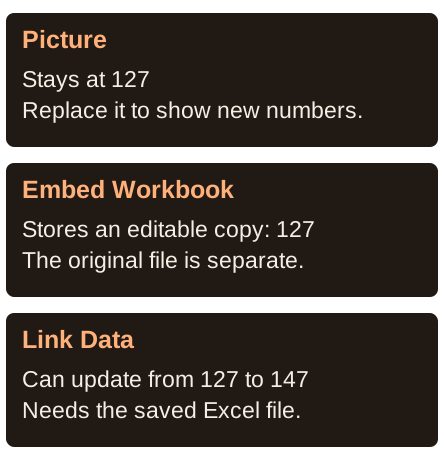
| Picture | A fixed image | Excel changes do not update it. |
| Embed | A copy of Excel data inside PowerPoint | You can edit its stored Excel data; changes to the original workbook do not update this copy. |
| Link | A chart or worksheet connected to the Excel file | PowerPoint can update when it can reach the saved source file. |
Use a picture for a final slide. Use Embed when the person receiving the deck needs to edit the copy. Use Link for a recurring report that has one stable Excel file.
These are different choices. Check the paste option explicitly; ordinary paste behavior can vary. The exact menu names can vary by Windows, Mac, and version, so use desktop PowerPoint and test the file you will send.
For a chart you want to embed, copy it from Excel. In PowerPoint’s Paste menu, choose Keep Source Formatting & Embed Workbook or Use Destination Theme & Embed Workbook. To change the stored values later, right-click the chart and choose Edit Data → Edit Data in Excel, where available. That opens the copy stored in the presentation.
Illustrated example
What happens after you paste?
2. Make the Excel report fit the slide
- In PowerPoint, choose Insert → Shapes → Rectangle. Draw a rectangle in the part of the slide where the dashboard should fit.
- Click its border and copy it. Paste it into the Excel Dashboard sheet. Use that rectangle to plan the space for your charts and total.
- Copy one finished chart into PowerPoint as a picture using the next step. Resize it to fit the rectangle.
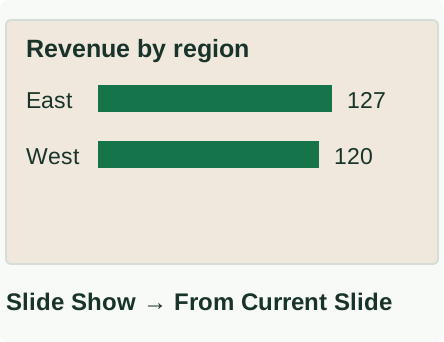
- Choose Slide Show → From Current Slide. Read the chart titles, axis labels, and values. If they are too small, make them larger in Excel and copy the chart again.
The rectangle is a size guide. It does not make fonts identical in the two apps. Remove the guide from the finished slide and workbook when you no longer need it.
Illustrated example
Check the chart at slide size
3. Paste a fixed picture
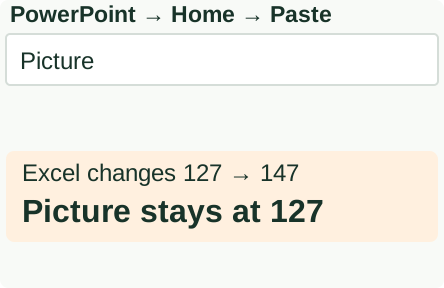
For one chart, select its outer border in Excel and press Ctrl+C. In PowerPoint, click the slide, open Home → Paste, and choose the Picture option. Hover over a paste icon to read its name if needed.
For a whole dashboard containing separate charts, shapes, and cells, capture the finished view as a picture:
- In Excel, show the correct date and filter selection. Make the full report visible at a readable size.
- On Windows, press Windows+Shift+S. Drag a rectangle around the report. Leave out unrelated cells and the Excel ribbon.
- Switch to the slide in PowerPoint and press Ctrl+V. Resize using a corner handle so the picture keeps its proportions.
- Show the slide full screen. Check that every title and number is readable.
You should see: a fixed picture. Changing the Excel numbers will not change this slide. Copy a new picture whenever you need updated values.
If the picture is blurry, enlarge the report in Excel and capture it again. For PowerPoint on the web, insert a saved picture using Insert → Pictures.
Illustrated example
Choose the Picture paste option
4. Link a chart to Excel
If you make the same presentation each week, this is the part that can save you repeated copying. A linked chart gives PowerPoint a way to read the updated values from your saved Excel file. Before using it for a whole dashboard, test that connection with a chart whose numbers are easy to check.
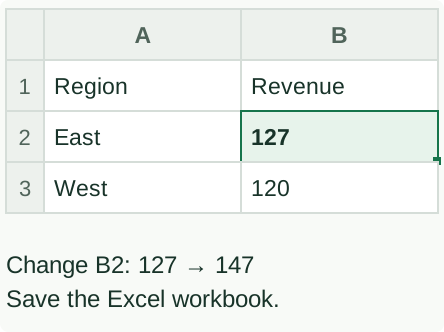
In a blank Excel sheet, type Region in A1 and Revenue in B1. Type East / 127 in row 2 and West / 120 in row 3. These are practice values you can edit directly.
- Select A1:B3. Choose Insert → Column or Bar Chart → Clustered Column.
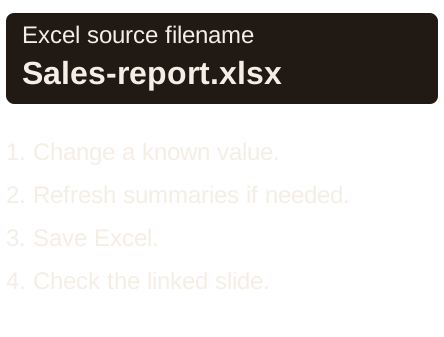
- Save the workbook as Sales-report.xlsx in a folder you will keep using.
- Click the chart’s outer border and press Ctrl+C.
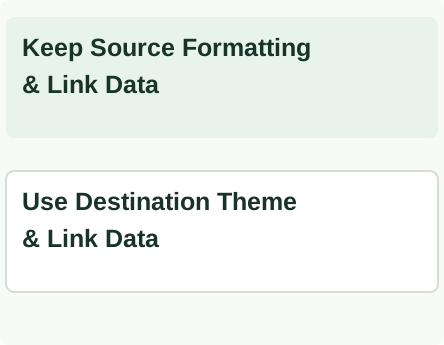
- In desktop PowerPoint on Windows, click the slide and open Home → Paste. Choose Keep Source Formatting & Link Data to keep the Excel appearance, or Use Destination Theme & Link Data to use the presentation’s theme.
- Save the PowerPoint file. Go back to Excel, change B2 from 127 to 147, and save Excel.
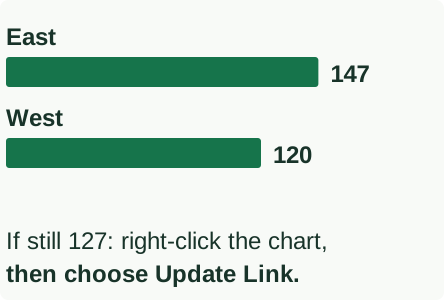
- Return to PowerPoint. If the chart has not changed, right-click it and choose Update Link.
You should see: the PowerPoint chart shows East 147 and West 120. In Excel, SUM(B2:B3) is now 267. That total is a separate check; it is not automatically another number on the slide.
If the chart still shows 127, check that you chose an option containing Link Data, that Excel is saved, and that the source file has not moved. Recopy and link the chart if needed.
When you link a PivotChart from the dashboard lesson, edit the original sales rows and choose Data → Refresh All before saving Excel. Do not type into the PivotTable totals.
For a separate cell range on Windows desktop, Home → Paste → Paste Special → Paste link → Microsoft Excel Worksheet Object may be available. It is a separate object; copying one chart does not link every number and shape in the dashboard.
See Microsoft’s chart-linking guide and worksheet-linking instructions.
Illustrated example
Use a tiny table to test the link
Illustrated example
Look for the words Link Data
Illustrated example
After saving, check the slide
5. Keep the Excel file available
A linked chart needs to find its Excel source. Keep the same filename and folder when possible. If you rename or move the workbook, PowerPoint may not find it. Sending only the PowerPoint file may leave the link unavailable to the reader. They need access to the Excel source at a location PowerPoint can reach, or you need to send a fixed picture or embedded copy.
For each weekly update, change a known value, refresh any PivotTables, then save Excel, open PowerPoint, and check the chart. If the numbers do not change, use Update Link. If the source is not available to the person receiving the deck, use a picture or embed a copy instead.
An embedded workbook can make the PowerPoint file larger and can include more data than the visible chart. Open the copy before sharing it and check what it contains.
Illustrated example
Keep the source file available
6. Check the slide before you send it
Use one simple test for each choice:
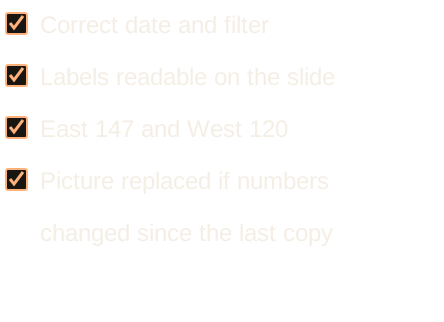
- Picture: check the date, filter state, and text size.
- Embed: open the embedded Excel copy and check the data inside it.
- Link: change East from 127 to 147, save Excel, and confirm that the PowerPoint chart changes to East 147 while West stays at 120.
- Any choice: open the exact file you will send and check it on the slide size.
Keep a clean table of the source numbers in Excel as well. Someone may need the actual table instead of the picture.
If you are still building the Excel side, start with the step-by-step dashboard lesson. If the recurring report needs more help than a template provides, we can plan and build the report.
Illustrated example
Check the file you will send
Microsoft documentation
The documentation below covers the Excel and PowerPoint features used in this guide. Choose the platform tab that matches your version.