
In many cases, we want to reuse our designs across different types of data and in different situations. Once you have a report that looks good, being able to use it again can save a lot of work.
Now the bad news is that taking an Excel design built for one type of data and applying it to another is not always a seamless process. The charts and calculations are built around the original data. If that changes, some of the report may need to change with it.
I have always said templates are best used as a learning tool. With a bit of practice, you can carry over much of the design and use the original workbook as a reference for your own report.
In this guide, we’ll work through what you can keep, what you need to change, and how to check the numbers before you rely on the result.
1. Compare the rows and columns
The menu steps use Windows desktop Excel; use the platform tabs in the linked Microsoft guides for other versions.
The easiest case is a new set of rows with the same columns and meaning as the template’s sample data. Before you change anything, check whether that is what you have. It will help you decide how much of the existing report you can reuse.
First click File → Save As and give the template copy a new name. Open the copy and find its sample data sheet.
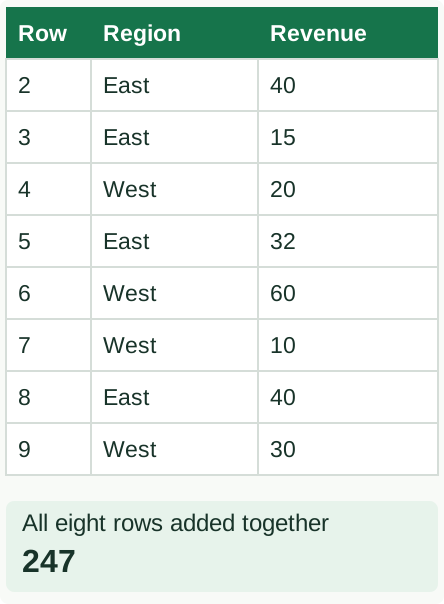
Here is the complete example used in this guide. The sheet is called Data. The Excel Table on it is named Sales. One row shows one product bought. An order with two products takes two rows.
| OrderID | OrderDate | Region | Product | Quantity | Revenue |
|---|---|---|---|---|---|
| A1001 | 2026-01-02 | East | Notebook | 2 | 40 |
| A1001 | 2026-01-02 | East | Pen | 3 | 15 |
| A1002 | 2026-01-10 | West | Notebook | 1 | 20 |
| A1003 | 2026-01-17 | East | Folder | 4 | 32 |
| A1004 | 2026-02-03 | West | Notebook | 3 | 60 |
| A1004 | 2026-02-03 | West | Pen | 2 | 10 |
| A1005 | 2026-02-12 | East | Folder | 5 | 40 |
| A1006 | 2026-02-18 | West | Pen | 6 | 30 |
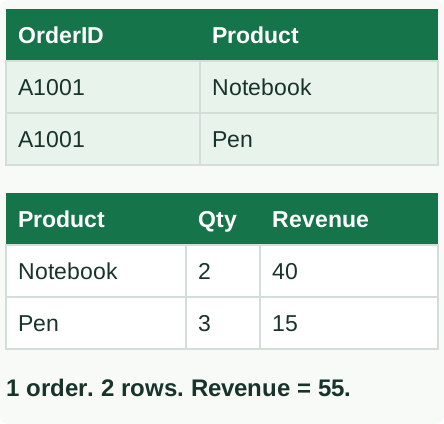
OrderID A1001 appears twice because that order contains notebooks and pens. Do not delete one of those rows as a duplicate. Revenue is the total for that row: the two notebooks together cost 40.
Now read one row of your own file. Does it also describe a product bought? Check each column. A column called Amount might be revenue, cost, or a balance; the name alone does not tell you.
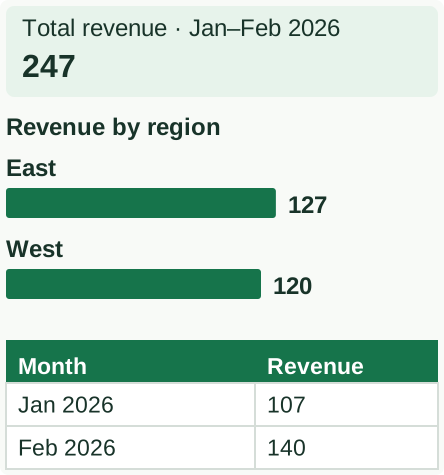
You should see: the example Revenue column adds to 247: East 127 and West 120. Your real file will have its own totals.
Illustrated example
The rows behind the total
Illustrated example
The answers from those rows
Illustrated example
One order, two products
2. Replace rows that have the same meaning
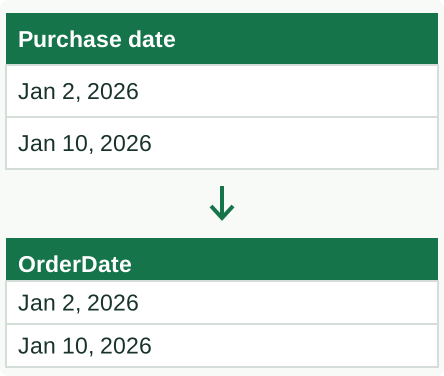
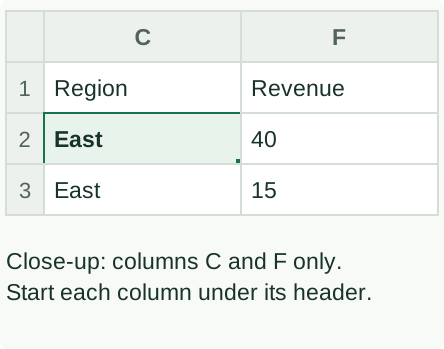
These steps assume your file has the same kinds of rows as the template. First line up the columns in the same order. For example, a Purchase date column can go under OrderDate if both mean the date of the purchase.
- Find the table name and range. Click a sample cell. Open Table Design and read the Table Name box. Choose Resize Table to see which cells it includes, then Cancel. If Table Design does not appear, this is an ordinary cell range; do not use the table-specific deletion steps below.
- Keep a formula example. If a column contains formulas, copy one formula to a note before removing sample rows. Check the formula bar at the top of Excel to see whether a cell starts with =.
- Remove the sample rows. For our six-column example with no formula columns, select A2:F9. Right-click inside that selection and choose Delete → Table Rows. Keep the headers in row 1. In your template, select its sample rows, not these addresses unless they match.
- Paste the replacement values. Click the first empty cell below the first matching header. Use Home → Paste → Values. Paste only into input columns. For a template with formula columns between input columns, paste each input column separately.
- Check the last row. Open Table Design → Resize Table. The range should include every new row. Extend it if needed, then click OK. If a formula column did not fill down, restore its formula and copy it through the last row.
- Update the summaries. A PivotTable is Excel’s summary table. Choose Data → Refresh All so it reads the new rows.
For a check outside the table, type =SUM(Sales[Revenue]). Sales must be the actual table name and Revenue the actual column name; replace them if your names differ. Clear the report’s filters before comparing this full total. In our example, both should be 247.
Then select East in the report. Add just the East Revenue rows by hand: 40 + 15 + 32 + 40 = 127. The report should show 127. The SUM formula above will still show the full 247; it does not follow a PivotTable slicer.
If the report omits rows, check which table or cells the PivotTable reads. Microsoft also explains how to refresh it.
Illustrated example
Match the meaning first
Illustrated example
Keep headers. Paste below.
3. Rebuild the totals if the data is different
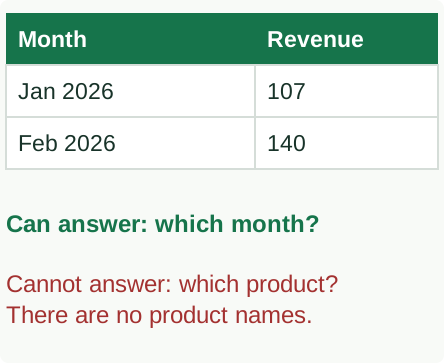
A file containing only Month and Revenue can show a monthly chart. It cannot show product sales because it has no product names. Renaming the Month column Product would change the label, but it would not supply the missing information.
| Month | Revenue |
|---|---|
| Jan 2026 | 107 |
| Feb 2026 | 140 |
With this file, keep the template’s colors and shapes, but make a new monthly summary. If you need a product filter, ask for a file that includes the products bought.
For a new workbook, double-click the first sheet tab and name it Data. Click the + button twice, and name the two new tabs Analysis and Dashboard. Keep the original rows on Data, the tables that add them up on Analysis, and the charts on Dashboard.
Follow the complete eight-row dashboard lesson for exact cells, PivotTable settings, and checks.
Illustrated example
This table has no products
4. Copy the shapes, then check their links
This is where the design work in the original template can still save you time. Once the new numbers work, you can bring over the shapes, colors, and layout you want to keep. Grouping related objects makes them easier to copy and move together.
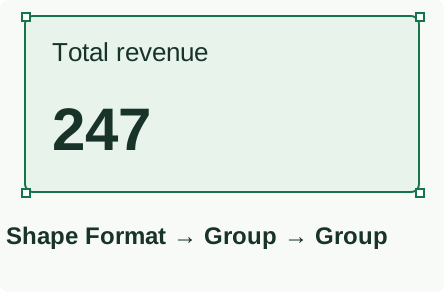
- Click the border of a shape or text box. Hold Shift and click the other objects that belong with it. If they overlap, use Home → Find & Select → Selection Pane to select them by name.
- Choose Shape Format → Group → Group. Copy the group and paste it on the new Dashboard sheet. Grouping keeps those objects together when you move them.
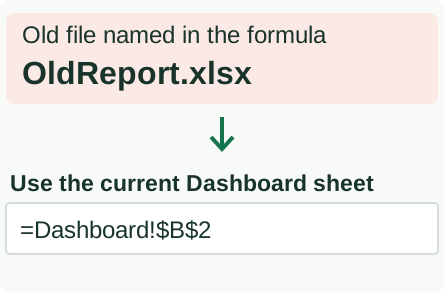
- Click a copied text box’s border and check the formula bar. A reference such as
=[OldReport.xlsx]Dashboard!$B$2still points to the old file. If the correct total is now in B2 of this workbook’s Dashboard sheet, replace that reference with=Dashboard!$B$2and press Enter. If the sheet name contains spaces, Excel may add apostrophes. You can type = in the formula bar, click the correct total cell, and press Enter to let Excel write the reference. - For a copied chart, open Chart Design → Select Data. For an ordinary chart, select a series and click Edit to check its name and value range. Use the range selector beside a field to select the correct cells in the current workbook, then click OK. Repeat for every series. Check the category labels through Horizontal (Category) Axis Labels → Edit; for a scatter chart, check each series’s X and Y ranges instead. For a PivotChart, build it from the new PivotTable rather than editing series ranges manually.
To match workbook colors, use Page Layout → Colors. The theme guide shows how to save and reuse a palette. The shapes guide covers grouping and overlapping objects.
Illustrated example
Select the objects together
Illustrated example
Point to this workbook’s cell
5. Reuse a chart’s formatting
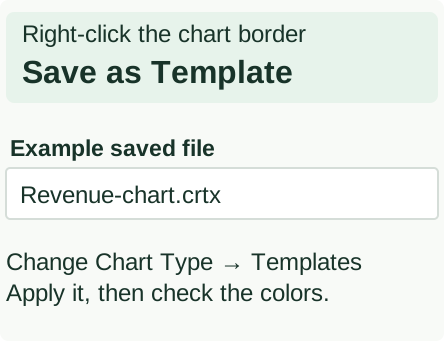
To save the look of one chart, click the chart, right-click its border, and choose Save as Template where available. Give the file a name and save it. Excel saves a chart template as a .crtx file. To use it, select a new chart, choose Chart Design → Change Chart Type → Templates, and select the saved template.
Look at the colors after applying it. Microsoft notes that a chart template can bring its saved colors instead of using the current workbook theme. If East and West have assigned colors, change them and check the legend and labels.
A chart template saves chart formatting. It does not create missing rows, rebuild formulas, or make a monthly table behave like a list of products bought. Use it after the source and calculations are correct.
Read Microsoft’s chart-template guide for the exact menu names on your version.
Illustrated example
Save the chart’s appearance
6. Add a row and check the result
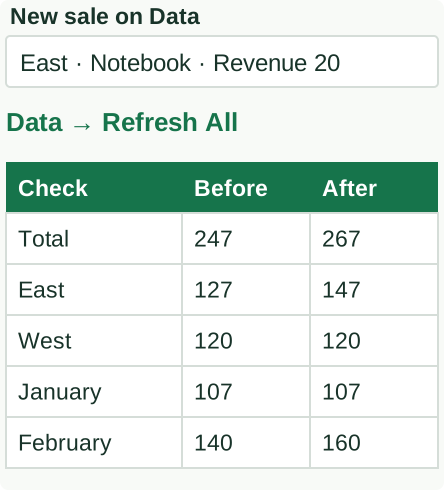
Before sharing the workbook, add one row whose effect you know. For the example, add an East sale with Revenue 20. Check that it is inside the Sales table, clear all filters, and choose Data → Refresh All.
You should see: the full total changes from 247 to 267. East changes from 127 to 147. West stays at 120.
Click a copied chart and text box and check that they use the current workbook. Save and reopen the file, then repeat the filter check. Add a short instruction beside the data: where to paste the next rows, which columns contain formulas, and which refresh button to use.
If you want working design examples to start from, the Excel Dashboard Toolkit includes dashboard files and design resources you can open and inspect. Use these same checks when adapting them.
Illustrated example
Add 20. Refresh. Check.
Microsoft documentation
The documentation below covers the Excel and PowerPoint features used in this guide. Choose the platform tab that matches your version.