
Slicers take a report that would otherwise be a fixed view and turn it into something you can explore. They give you buttons to select different regions or product categories, so you can start asking questions with the report and see how the numbers change.
Formatting slicers can also be a pain. I personally keep a stylesheet with a bunch of slicers I like and copy them into my reports. Having starting points is much easier than rebuilding every visual choice each time.
We’ll get the filtering working first, then adjust the buttons, colors, and layout. I’ll also show you how to bring a style from another workbook into your report, so you have a starting point the next time you need it.
1. Connect the buttons to the report
The steps below use Excel for Microsoft 365 on Windows desktop. Mac and web versions have different controls; use the matching tab in Microsoft’s slicer guide.
These steps use the practice sales dashboard. It contains three PivotTables: Excel summary tables that add the sales rows by region, by month, and in total. Their names are RevenueByRegion, RevenueByMonth, and RevenueTotal.
If you use your own file, click inside each PivotTable and find its name on PivotTable Analyze → PivotTable Name. Write down which chart or number it supplies. A chart built directly from ordinary cells will not appear in Report Connections.
- Click the PivotTable that summarizes revenue by region. Choose PivotTable Analyze → Insert Slicer. Tick Region and click OK.
- Click the slicer’s outer border, then choose Slicer → Report Connections. Some versions call it PivotTable Connections.
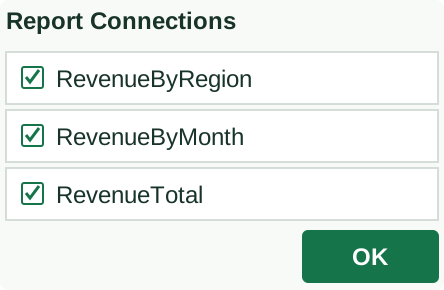
- Tick all three named PivotTables and click OK.
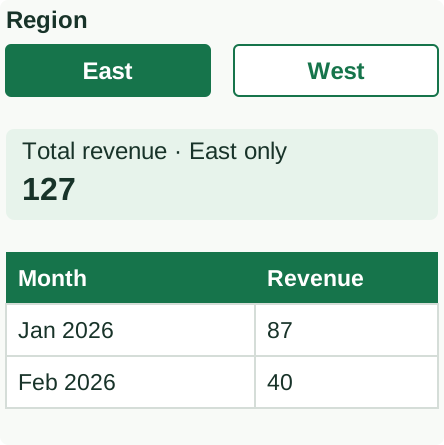
- Click East. Check each chart and the large total.
You should see: in the practice file, the total changes from 247 to 127. January changes from 107 to 87; February changes from 140 to 40.
If one number stays at its original value, reopen Report Connections and check that its PivotTable is ticked. If a table is missing, it may use different source cells. For this practice file, follow the copy-and-edit steps to make it from the first PivotTable, then point its chart or formula at the new copy. Moving or recoloring the slicer will not change which data it can filter.
This shared-filter method is for PivotTables. A slicer made from an Excel Table filters that table.
Illustrated example
Tick all three PivotTables
Illustrated example
Click East. Check every result.
2. Put East and West side by side
- Click the slicer’s outer border, not one of its buttons.
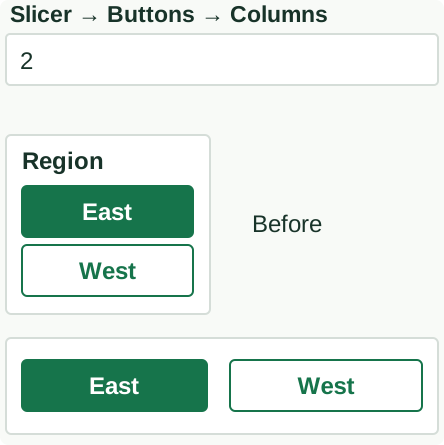
- Open the Slicer tab. In the Buttons group, change Columns from 1 to 2.
- Drag the right edge of the slicer to make it wider. East and West should fit beside each other.
- In the same Buttons group, adjust Height and Width if needed. These controls size the buttons. The separate Size group changes the whole slicer.
You should see: two fully readable buttons in one row, under the Region heading.
For a longer name such as Northeast, make the button wide enough to show the whole word. For many regions, use more rows and keep a scrollbar. Do not squeeze every option into a small strip.
Keep the Region heading and Clear Filter icon visible. Right-click the slicer, choose Slicer Settings, and check Display header if they have disappeared.
Illustrated example
Change Columns from 1 to 2
3. Make the selected button easy to see
- Select the slicer’s border. Open Slicer → Slicer Styles. Use the small More arrow to see the full gallery.
- Click a built-in style. Then click East in the slicer.
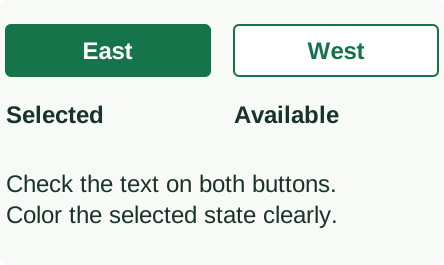
- Check that East looks clearly selected and West still looks like a button you can click. The words must be readable on both.
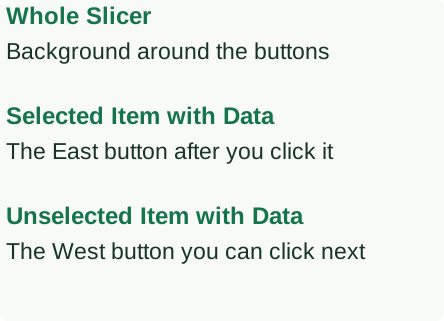
For a custom style on Windows desktop, right-click a style in the gallery and choose Duplicate, where available. Name the copy. In the style editor, select Whole Slicer → Format to change its background. Click OK to return to the editor.
To change the selected button, choose Selected Item with Data, then Format. To change an available button that is not selected, choose Unselected Item with Data. Set readable text and fill colors for each. Click OK to save the style, then click the new style under Custom to apply it.
There are separate settings for the mouse hovering over a button and for buttons with no data. Test those too if your report uses them. If your Excel version has no custom-style editor, use a built-in style that passes the readability check.
Illustrated example
Make the selection obvious
Illustrated example
Choose the part you want to edit
4. Copy a style from another workbook
A stylesheet is a workbook where I keep finished style examples. When I find a slicer design I like, I have a starting point I can use again. Here is how to bring one of those styles into another workbook and apply it to that report’s own slicer.
- Save a copy of the report you are working on. Open that copy and the workbook that contains the style you want.
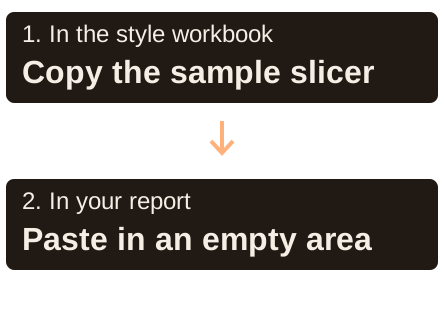
- In the style workbook, click the example slicer’s outer border and press Ctrl+C.
- Switch to your report. Click an empty area and press Ctrl+V. Leave this copied slicer there for now.
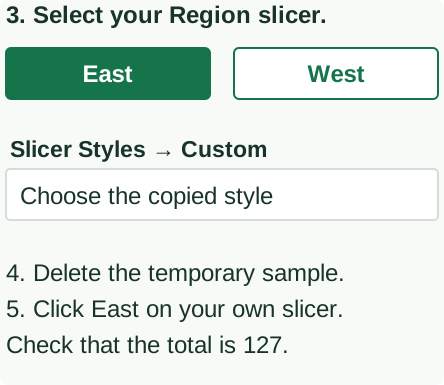
- Click the border of your report’s own Region slicer, the one you tested in step 1. Open Slicer → Slicer Styles and expand the gallery.
- Under Custom, click the transferred style. Your Region buttons should take on its colors.
- Click the border of the copied example slicer and press Delete. Keep your own Region slicer.
- Click East on your own slicer. Confirm that the total becomes 127 in the practice file.
The copied example brings the style. It does not automatically become a filter for your sales rows. That is why you apply the style to the slicer you already tested.
If the custom style does not appear in your version, use a built-in style or recreate the colors with the editor in step 3. Microsoft’s technical reference confirms that a custom style must exist in the workbook before it can be applied.
The template reuse guide shows how to check copied charts and formulas too.
Illustrated example
Copy the example first
Illustrated example
Then select your own slicer
5. Test the finished slicer
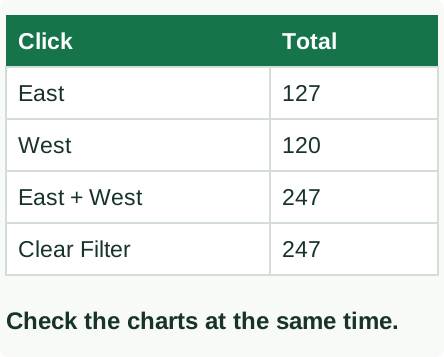
- Click East. In the practice file, the total should be 127. East should look selected; West should remain readable.
- Click West. The total should become 120.
- Select both. On Windows, hold Ctrl and click East while West is selected. Both buttons should look selected and the total should be 247. You can also turn on the Multi-Select icon in the slicer header, then click buttons to select or deselect them.
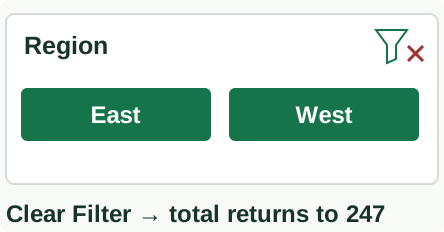
- Clear the filter. Click the funnel with an X at the top right. The total should be 247.
- Check a long label. If the word is cut off, widen the button. If the text fades into its background, choose another style or change that state’s text and fill colors.
Save, close, and reopen the report in the Excel version the reader will use. Repeat the East and Clear Filter checks. If the report has several slicers, try them together and check that any unavailable options are easy to recognize.
Illustrated example
Check each filter result
Illustrated example
Clear the Region filter
Microsoft documentation
The documentation below covers the Excel and PowerPoint features used in this guide. Choose the platform tab that matches your version.