How to make Excel dashboards look professional.
Most dashboards don't look unprofessional because of the data. They look unprofessional because of the defaults. Here's the seven-step recipe I use to take an Excel dashboard from a grid of numbers to something that looks designed.
Start with the person who has to use the dashboard. What do they need to find, and where will they read it? Build the layout around that, use color to group related information, and make the text, charts, and controls easy to read. A weekly overview for your team and a report for a board meeting do not need the same design.
The data is fine. The presentation isn't.
You can have the right numbers and the right formulas and still hand someone a dashboard they won't read. I see it constantly, and the reason is almost always the same: default fonts, default colors, no margins, no hierarchy. The spreadsheet is doing the math but doing nothing to communicate it.
Making it look professional isn't about adding more. It's a handful of deliberate decisions, repeated consistently, and none of them need anything beyond standard Excel features. Work through the seven steps in order. Each one is small, but together they're the difference between "a spreadsheet" and "a report someone acts on."
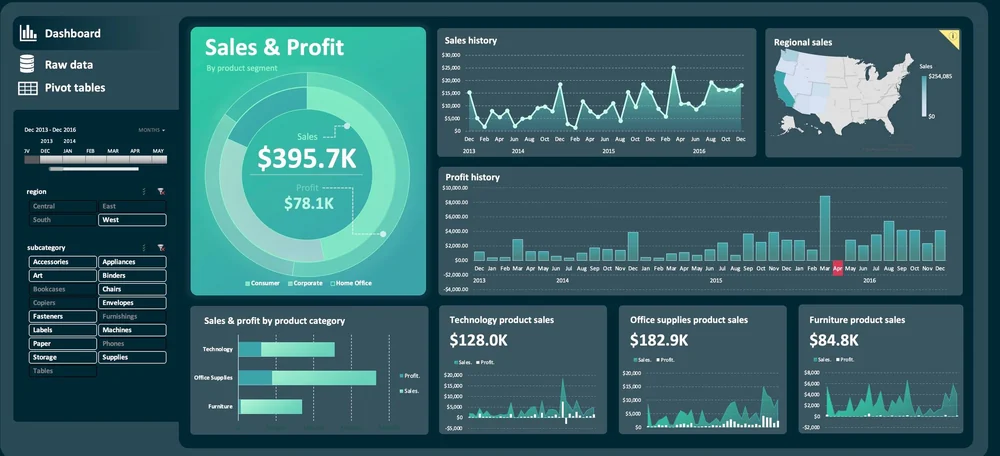
Seven steps to a professional dashboard
Start from a grid and set margins
Before placing anything, decide where the report will be read: a laptop, a larger monitor, a slide, or a printed page. Set your canvas to fit, then decide on a column-width grid and consistent outer margins. Snap every card, chart, and label to that grid so the edges line up. In my experience alignment is the single biggest driver of "this looks designed."
Decide what the reader should see first
What do you want someone to look at first? If the report is about one result, give that result the most space. If it is an overview of several areas, group the related metrics and make those groups easy to scan. You still need a reading order; you do not need to force the whole report to support one number.

Choose colors for this audience and this data
The data viz world seems to have an aversion to color. But color is one of the easiest ways to grab attention and group related ideas. Start with your brand or a reference that fits the audience, choose the background, panels, and text, then add the highlight and category colors your report needs.
Fix typography and spacing
Replace the defaults with one clean font in a clear size scale, align text edges, and add real whitespace between blocks. Most "messy" dashboards are a spacing-and-alignment problem in disguise.
Choose honest charts and remove chart junk
Pick the chart that helps the reader make the comparison. Keep labels and reference lines that help someone interpret it; remove borders, duplicate legends, and effects that get in the way. A chart can be visually interesting and easy to understand. Those are not opposites.
Add slicers and interface polish
Add slicers, a clear title, and predictable navigation so the workbook feels like a product someone can use, not a maze they decode. Then hide the chrome the reader doesn't need.

Reuse it as a theme or system
An Office theme saves colors, fonts, and effects. Your spacing, layout, and reusable components belong in a starter workbook. Keep both. Changing the theme in one file does not update every old report: apply it to each workbook and check anything you formatted manually.
Don't start from a blank sheet
The fastest way to a professional-looking dashboard is to start from one. Study finished examples to see the steps applied, take apart my working files in the Dashboard Toolkit instead of beginning from a blank grid, and read what Excel design means for the principles behind every step above.
Dashboard examples
See the seven steps applied in finished, polished dashboards.
See examples →Start from a working file
Sample dashboards, chart styles, source tables, reusable elements. Already on a grid and already designed.
See the Dashboard Toolkit →What is Excel design?
The principles behind the recipe, defined in plain English.
Read →Get help
Have an existing dashboard reviewed, redesigned from scratch, or built to a system.
Work with Josh →Professional dashboards, answered
How do I make my Excel dashboard look professional?
Start with who will read the report and what they need to find. Set a grid and margins, make that information easy to spot, choose colors that fit the audience, and keep categories consistent across charts. Use readable type, useful chart labels, and controls people can find. Save theme colors and fonts in an Office theme, and keep the layout in a starter workbook.
What font should I use in Excel dashboards?
Use one clean sans-serif font for the whole dashboard rather than mixing several. A single family in a clear size scale (a large size for the focal number, a medium size for headings, a smaller size for labels) reads as far more professional than default Calibri at one size everywhere. Consistency matters more than which specific font you pick.
How many colors should a dashboard use?
There is no useful fixed limit for every dashboard. You need colors for the background, panels, text, and any categories or status values the reader must distinguish. A single highlight works well for one comparison; several categories may need several distinct colors. Keep the same metric or category the same color wherever it appears, and check that adjacent colors are easy to tell apart.
Can an Excel dashboard look as polished as Power BI or Tableau?
Yes. Get the layout, color choices, typography, charts, and styled slicers right and an Excel dashboard can look as polished as a dedicated BI tool, while staying in the file most teams already use and can edit themselves. See examples →
Is there a shortcut to a professional dashboard?
Start from a designed template rather than a blank sheet, study good examples, and read the press kit for more on the approach. For an existing report, you can also have it redesigned or reviewed.