
I used to avoid waffle charts made with conditional formatting in the worksheet grid. I found that approach inconvenient and not very flexible when I wanted to move a chart around a dashboard. So I looked for an alternative and came back to a scatter plot.
Other people had already figured this out. What I wanted to do was go a little deeper into how it works and make the inputs more flexible. You can put in a minimum, a maximum, and a current value instead of having to start with a percentage.
The result is a waffle chart you can move and resize as you arrange your dashboard. I’ll walk you through the cells and chart settings that make it work, so you can build one yourself and adjust it for your report.
When this method is useful
This waffle is a chart object. You can move it and resize it on a dashboard. You do not have to rebuild colored worksheet cells.
Use it for one part-to-whole value or progress toward a target. If readers need to compare many close values, a simple progress bar may be easier. Add the number beside the chart so nobody has to count squares.
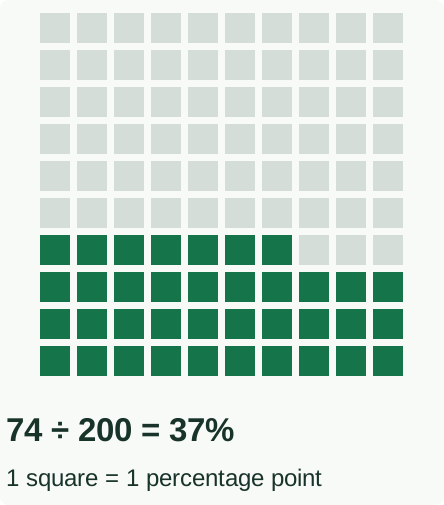
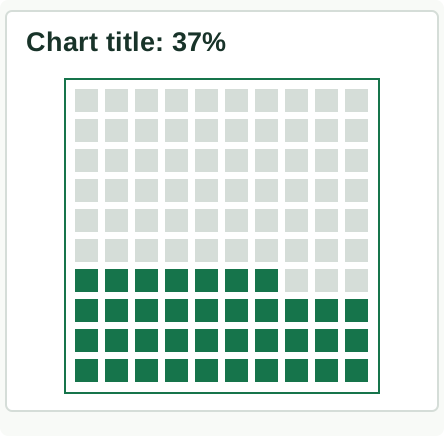
In this article, the chart has 100 squares. One square equals one percentage point of the calculated progress.
Illustrated example
37% means 37 filled squares
1. Enter the three values
The nice thing about this method is that you can start with the values you actually have. We’ll turn the minimum, maximum, and current value into a percentage, then use that percentage to decide how many squares to fill.
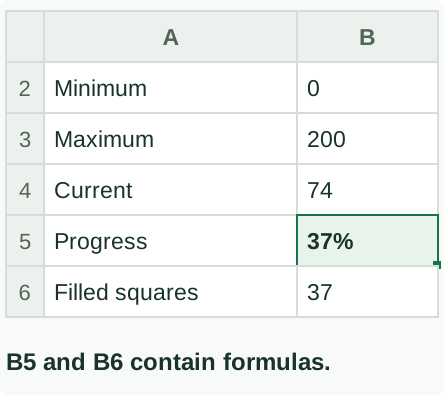
Use three input cells and two result cells. Start on a blank sheet. Double-click its tab at the bottom, type Waffle, and press Enter. Put these labels in column A and values in column B:
| Cell | Label | Value or result |
|---|---|---|
| B2 | Minimum | 0 |
| B3 | Maximum | 200 |
| B4 | Current value | 74 |
| B5 | Progress | Formula below |
| B6 | Filled squares | Formula below |
Click B5, type this formula, and press Enter:
=IF(OR(COUNT(B2:B4)<>3,B3<=B2),NA(),MAX(0,MIN(1,(B4-B2)/(B3-B2))))With B5 selected, click Home → Percent Style (%). With B2 = 0, B3 = 200, and B4 = 74, B5 displays 37%.
Click B6 and type:
=ROUND(B5*100,0)B6 displays 37. The first formula stops the chart if a value is missing, not numeric, or if the maximum is not greater than the minimum. In those cases, B5 shows #N/A. Fix the input cells. The formula also caps progress between 0% and 100%.
Illustrated example
Three inputs. Two results.
2. Make the 100 dot coordinates
A scatter plot simply puts a dot at an X coordinate and a Y coordinate. That is all we are doing here: choosing where each dot goes so the dots form a grid. X controls its position across the chart; Y controls its position up the chart.
Make a small table with these headings in A9:E9: Point, X, Y, Filled X, Filled Y. Column A is the fill order. The fill handle is the tiny square at the bottom right of the selected cells. Type 1 in A10 and 2 in A11, select both cells, and drag the fill handle down to A109. The last point is 100.
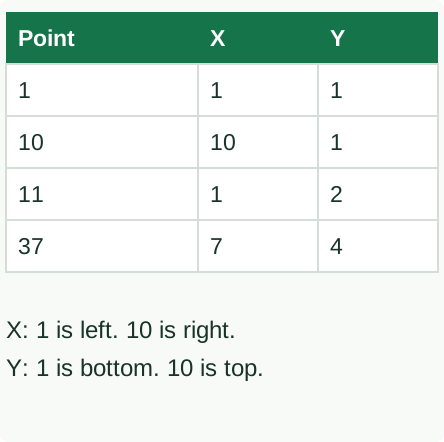
Column B is the horizontal position. X = 1 is the left side and X = 10 is the right side. Click B10, type the formula below, then drag the fill handle down to B109:
=MOD(A10-1,10)+1Column C is the vertical position. Y = 1 is the bottom row and Y = 10 is the top row. Click C10, type this formula, and drag it down to C109:
=INT((A10-1)/10)+1Point 1 is X=1, Y=1. Point 10 is X=10, Y=1. Point 11 starts the next row at X=1, Y=2.
Illustrated example
X goes across. Y goes up.
3. Choose which dots are colored
Column B/C contains all 100 gray dots. Columns D/E contain only the dots that should be colored. For each point, compare the point number in column A with B6.
Click D10, type this formula, and drag it down to D109:
=IF(A10<=$B$6,B10,NA())Click E10, type this formula, and drag it down to E109:
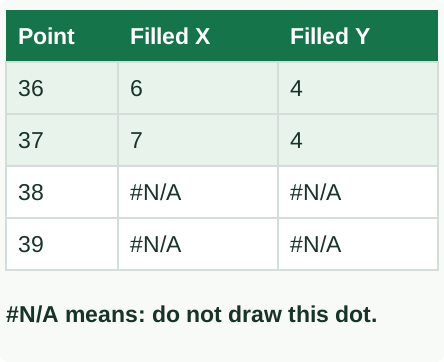
=IF(A10<=$B$6,C10,NA())For the example, B6 is 37, so points 1 through 37 have coordinates in D/E. Points 38 through 100 return #N/A. Those #N/A cells are intentional. Excel skips them in the colored-dot series, so no colored dots appear for points 38–100. Do not use zero for skipped points: zero is a real coordinate and may put unwanted dots at the chart origin.
Illustrated example
Stop the color after point 37
4. Insert and format the scatter chart
These menu names are for Windows desktop Excel. Start with the sheet named Waffle so you can use the references below exactly.
Make the two groups of dots
- Select B9:C109. Click Insert → Scatter (X, Y), then choose the first option: dots with no connecting lines.
- Click the chart. Choose Chart Design → Select Data. Under Legend Entries (Series), select the existing series and click Edit.
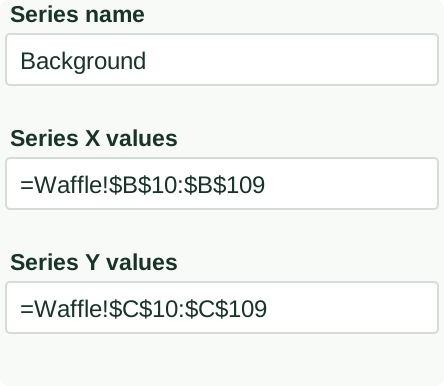
- Type Background in Series name. Set Series X values to
=Waffle!$B$10:$B$109and Series Y values to=Waffle!$C$10:$C$109. Click OK. Remove any extra series Excel created. - Click Add. Name this series Filled. Set X values to
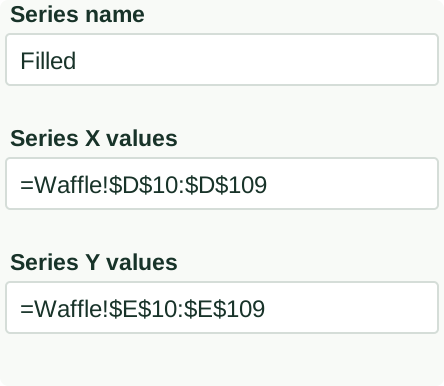
=Waffle!$D$10:$D$109and Y values to=Waffle!$E$10:$E$109. Click OK.
You should now see exactly two series: Background first, Filled second. A series is one group of dots. The Filled group is drawn over the Background group.
Illustrated example
First series: Background
Illustrated example
Second series: Filled
Make the dots square
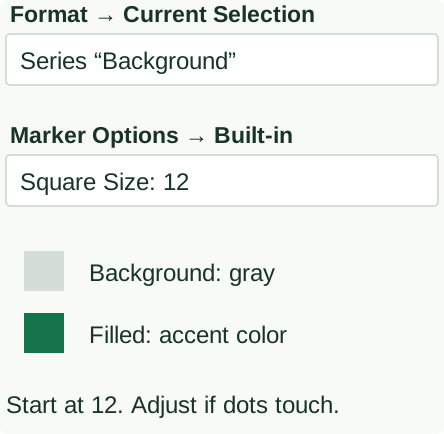
- Click the chart. On the Format tab, open Current Selection. Choose Series “Background”, then click Format Selection. This selects every Background dot, not just one.
- In the Format Data Series panel, open Fill & Line → Marker → Marker Options → Built-in. Choose Square and start with Size 12.
- Under Marker Fill, choose a solid gray. Set the marker border to No line. Under Line, choose No line.
- Use Current Selection to choose Series “Filled”. Use the same square shape and size, with an accent fill such as green.
Illustrated example
Format every dot in the series
Set the space around the dots
- Right-click the numbers along the bottom of the chart. Choose Format Axis → Axis Options.
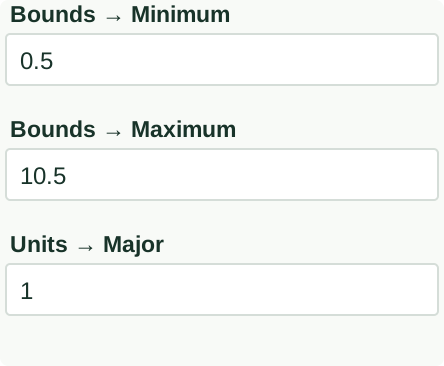
- Set Bounds Minimum to 0.5, Maximum to 10.5, and Units Major to 1.
- Repeat those settings for the vertical numbers along the left edge.
- Use Format → Current Selection → Plot Area. Drag the handles of this inner rectangle until it is square. The outer chart can be wider if it includes a title.
The axis numbers are dot positions, not percentages. B5 supplies the percentage. Keep the axes while checking the dots; afterward you can select the axes and gridlines and press Delete for a cleaner chart. Keep a visible 37% label beside it.
On Mac, use the corresponding Scatter, Select Data, and formatting controls in your version. Microsoft’s scatter chart guide explains the X/Y setup. You can also link a movable text box to B5 for a label that updates.
Illustrated example
Use these settings on both axes
Illustrated example
Make the inner plot area square
5. Resize it and test the numbers
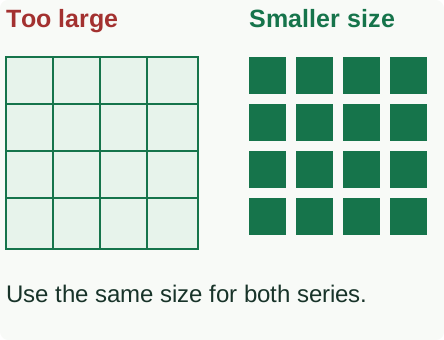
When you make the chart smaller, square markers may overlap. Use Format → Current Selection to select each series in turn, then lower its marker size in Format Data Series. Keep both series the same size. Keep the inner plot area square so the horizontal and vertical gaps look equal.
Test these values before sharing:
| Input | Expected result |
|---|---|
| Current = minimum | 0 filled squares |
| Current = maximum | 100 filled squares |
| Current 74, minimum 0, maximum 200 | 37 filled squares |
| Current below minimum or above maximum | 0 or 100 squares because B5 is capped |
| Maximum ≤ minimum, or a missing input | B5 shows #N/A; fix the input |
You can also make one row of dots: keep Y at 1, change the X positions, and use circle markers. Ten X positions give ten steps; 100 positions give 100 steps.
Illustrated example
Keep gaps between the squares
Microsoft documentation
The documentation below covers the Excel and PowerPoint features used in this guide. Choose the platform tab that matches your version.